 Vove AI
Reference example
Prepare a background-removal request from one photo. Choose transparent or white, compare the reference cutout and inspect your generated file before using it in a layout.

Reference media from the source site shows the creative direction. It is not a result generated by this service; your output may differ.
Browse the reference media, then choose the direction you want to make your own.
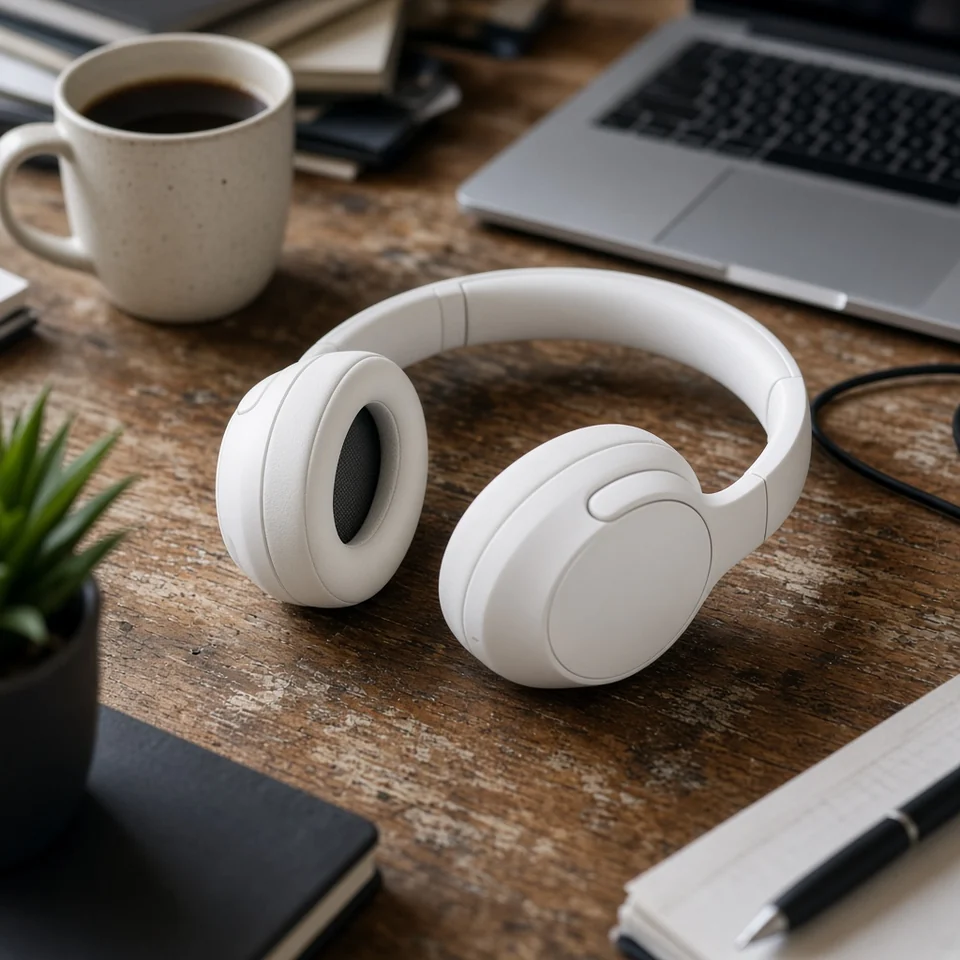
Reference media from the source site shows the creative direction. It is not a result generated by this service; your output may differ.
The aim is a reusable subject with its proportions and fine details intact. Transparent output asks the image model for a real alpha channel; a white-background direction creates a different kind of asset. Always inspect the downloaded file rather than assuming a checkerboard means transparency.
Upload the subject you want to isolate.
Choose actual transparency or a clean white background.
Inspect hair, glass and small gaps before placing the file.
Add the image to isolate
Upload the subject you want to isolate.
Use one JPG, PNG or WebP image up to 2 MB. Leave the complete subject inside the frame.
Inspect hair, glass and small gaps before placing the file. Find the saved task and download in My creations.
Cropped handles, hair or product edges cannot be recovered reliably by removing the background.
Look for halos, lost hair and unwanted gaps around transparent or reflective objects.
Generative image output may redraw details or fail to preserve alpha. Verify the actual file before production use.
The quote follows the image model and output size you choose. Check it beside the create button, then use the current credit plans if you need to top up.
Prepare a background-removal request from one photo. Choose transparent or white, compare the reference cutout and inspect your generated file before using it in a layout.
Use one JPG, PNG or WebP image up to 2 MB. Leave the complete subject inside the frame.
The transparent direction asks for an alpha channel, but generative output may fail to preserve it or redraw details. Open the downloaded file over a different background and inspect its actual alpha channel; a checkerboard picture alone is not proof.
Check the credit quote beside the create button and the current plans on Pricing. After signing in and submitting, follow the task here or in My creations. Download the completed result from your account.
Choose one direction above and give it a photo of your own.
Start creating